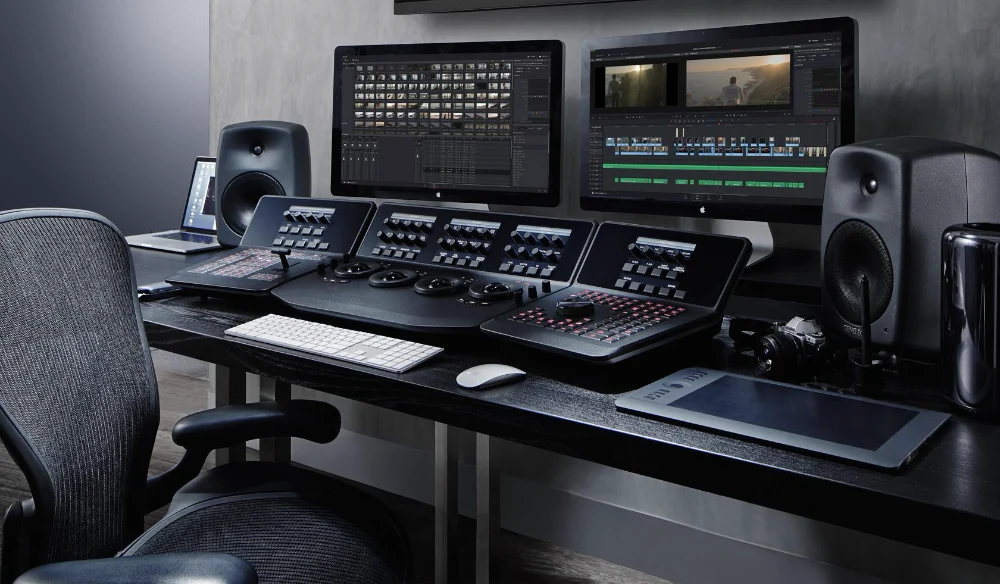
Getting your white balance wrong is one of those mistakes that snowballs. You can fight it in color grading, but you’re always fighting upstream. Get it right from the start — or fix it properly in post — and everything else becomes easier. This is how you do it in DaVinci Resolve.
Why White Balance Actually Matters in Post
White balance isn’t just a technical checkbox. It defines the emotional temperature of your image. A shot that’s too warm reads as golden hour even when it wasn’t. Too cool and your skin tones look like the subject is standing in a morgue. When your white balance is off, every other correction you make is compensating for something that shouldn’t have been a problem in the first place.
In DaVinci Resolve, you have serious tools to fix or refine white balance — but you need to know where to look and how to use them properly. Most people reach for the temperature and tint sliders and call it done. That works, but there’s a better approach.
The Color Wheels: Your Starting Point
Open your clip in the Color page and take a look at your scopes first. The Parade scope is your best friend here. If you’re looking at a shot that should have neutral whites or grays, those channels — red, green, blue — should be sitting at roughly the same level in the highlights. If red is pushing high and blue is sitting low, you’re warm. The other way around, you’re cool.
Before you touch a single slider, train your eye to read the scopes. That’s not a beginner tip — even experienced colorists check their scopes constantly because your monitor can lie to you depending on the room you’re in.
Using the Color Match Feature
If you’re working with footage that has a reference frame — something you know should be neutral — DaVinci Resolve’s Color Match is a fast starting point. It’s not always perfect, but it gets you in the ballpark quickly. Go to Color > Color Match, set your target color space, grab a still from your reference, and let Resolve do the initial lift. Then you refine from there.
This is especially useful when you’re batch-grading interviews or multicam shoots where the cameras weren’t matched on set. You’re not relying on guesswork — you’re giving Resolve something concrete to work from.
The Qualifier Method: White Balance with Precision
Here’s where it gets genuinely useful. If your shot has a known neutral element — a white wall, a gray card, a white shirt — you can use the Qualifier to sample that area and build a correction around it.
Drop a serial node, open the Qualifier, and use the eyedropper to sample the neutral area. Refine your selection using the Matte Finesse controls so you’re only targeting that specific zone. Now, anything you do in the color wheels only affects that selection. The goal is simple: get the RGB values of that neutral area to sit evenly. Check your Parade scope — if red, green, and blue are all at the same level in that sampled area, your white balance is correct for that source.
Once you’ve nailed it, you can either merge that node into your primary grade or use it as a reference point to manually adjust your Lift/Gamma/Gain wheels or your Temp/Tint sliders on a separate node.
Temperature and Tint Sliders vs. Color Wheels
The Temperature and Tint sliders in the Camera Raw tab (if you’re working with RAW footage) work differently than adjusting color wheels manually. In Camera Raw, you’re adjusting the decode — you’re working at the RAW level before the image is even rendered. This is the most non-destructive way to correct white balance, and if your camera supports it, this is where you should start.
For S-Log, Log-C, or any other log format that isn’t RAW, you won’t have those Camera Raw controls. You’re working with a baked-in signal, so your corrections happen in the Color Wheels or via the Log controls. In that case, use your Lift, Gamma, and Gain wheels to correct different tonal ranges independently — it gives you more control than a single global slider.
Gray Card vs. Auto White Balance: What Actually Works
Shooting with a gray card and sampling it in post is genuinely the most accurate method. You hold the card in your scene, shoot a few frames, and then in Resolve you sample that card using the Qualifier or the Color Match tool. It removes the guesswork entirely.
Auto white balance in-camera can work — modern cameras are decent at it — but it shifts over time if the lighting changes, and it can be fooled by dominant colors in the scene. If you’re shooting a subject in front of a bright red wall, your camera’s AWB might compensate in a way that introduces a green or cyan cast. A gray card doesn’t lie.
Checking Skin Tones After White Balance
Once you’ve set your white balance, immediately check your skin tones. Skin tones are the best real-world reference point for whether your grade is working. In the Vectorscope, skin tones across all ethnicities should fall along the skin tone line — a diagonal line that runs from the lower left toward the upper right of the scope. If your skin tones are wandering off that line, something in your white balance or primary grade is pulling the color in the wrong direction.
This is also where Tint corrections often live. Temperature handles the warm-to-cool axis (orange vs. blue), while Tint handles the green-to-magenta axis. If skin tones look slightly green or overly pink after you’ve corrected temperature, that’s a Tint issue.
Building a White Balance Node Structure
In a clean DaVinci Resolve node tree, keep your white balance correction on its own dedicated node — separate from your creative grade. Label it clearly. This way, if a client comes back with a revision, or you’re applying the grade across multiple clips and one clip was shot in slightly different light, you can adjust the white balance node without touching your creative work.
A simple structure that works:
- Node 1: White Balance / Primary Correction
- Node 2: Exposure and Contrast
- Node 3: Creative Grade / LUT
- Node 4: Finishing (saturation, output shaper)
Keeping things modular makes your workflow faster and your corrections more reversible. If you want to go deeper on node structures and how PowerGrades can speed this up, check out the PowerGrades vs LUTs article — it covers exactly when each approach makes sense.
One More Thing: Match Your Clips Before You Grade
If you’re cutting between multiple cameras or multiple takes shot in changing light, get your white balance consistent across all clips before you start your creative grade. Use Resolve’s Color Match or manually match using your scopes. Trying to apply a single LUT or PowerGrade across mismatched clips will give you inconsistent results — one clip looks right, the next looks too warm or too cool.
Spend 10 minutes matching your clips properly and your entire grade will be faster and more cohesive. It’s one of those workflow habits that separates editors who color grade from colorists who actually know what they’re doing.
Conclusion
White balance is foundational. Get it wrong and you’re fighting your footage through every step of the grade. Get it right — using the Qualifier, the scopes, Camera Raw controls where available, or a gray card reference — and everything above it becomes faster and more intentional. DaVinci Resolve gives you all the tools you need. The key is knowing which one to reach for and when.
If you’re working with log footage and want a fast, consistent starting point for your grades, take a look at the LUTs and PowerGrades available at Cine Source — they’re built to work on properly white-balanced, log-encoded footage so you get the most out of every shot.
Frequently Asked Questions
What is the best way to white balance in DaVinci Resolve?
The most accurate method is to shoot a gray card in your scene and sample it in post using DaVinci Resolve’s Qualifier or Color Match tool. For RAW footage, use the Camera Raw controls in the Color page to adjust Temperature and Tint at the decode level. For log footage, correct using the Lift, Gamma, and Gain color wheels and verify with your Parade scope.
Should I use Temperature and Tint sliders or Color Wheels for white balance?
If you’re working with RAW footage, use the Temperature and Tint sliders in the Camera Raw tab — it’s the most non-destructive approach. For log or other non-RAW formats, use the Lift, Gamma, and Gain wheels on the Color page, which let you correct different tonal ranges independently for more precise control.
How do I use the Qualifier for white balance in DaVinci Resolve?
Sample a known neutral area in your shot (white wall, gray card, white shirt) using the Qualifier’s eyedropper. Refine the selection with Matte Finesse, then adjust the color wheels until the RGB values for that neutral area sit evenly on the Parade scope. This gives you a precise, reference-based white balance correction.
How do I check if my white balance is correct using the Vectorscope?
After correcting white balance, check your skin tones on the Vectorscope. They should fall along the skin tone indicator line regardless of the subject’s ethnicity. If they’re drifting green or magenta, adjust your Tint. If they’re too warm or cool, adjust Temperature or the color balance in your Gain wheel.
Why should I keep white balance on a separate node in DaVinci Resolve?
Keeping white balance on its own dedicated node makes your grade modular and easier to revise. If you need to adjust one clip shot in different lighting, you can tweak the white balance node without touching your creative grade. It keeps your workflow clean, reversible, and consistent across multiple clips.